End-user guides for posting better missions, publishing safely, getting paid, and managing alerts.
What to do first
- Finish onboarding so your account is ready to fund, publish, and withdraw.
- Set your profile, credentials, and verification status from Profile.
- If you are a funder, fund any mission first, then post your own mission from Create mission.
- If you are an executor, complete your profile and start applying from Missions.
Screenshot/GIF references for new flows
Use these quick visual references, then open the linked pages to follow the same steps live.
Use in-editor guidance while drafting
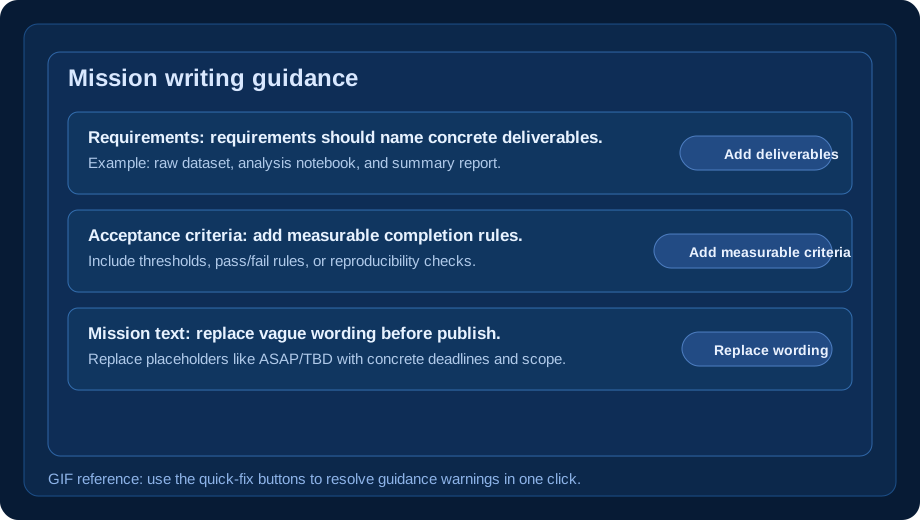
The mission create/edit forms now include writing guardrails and instant fix buttons.
- Guardrails flag vague titles, weak requirements, missing tags, and non-measurable acceptance criteria.
- Use one-click fixes like “Add deliverables,” “Add measurable criteria,” and “Replace vague wording.”
- Use the executor preview card to confirm your mission is clear before publishing.
- Milestone payout percentages must total 100% before publish.
- Edit existing drafts with the same guardrails in Draft missions.
Pre-submit publish checklist
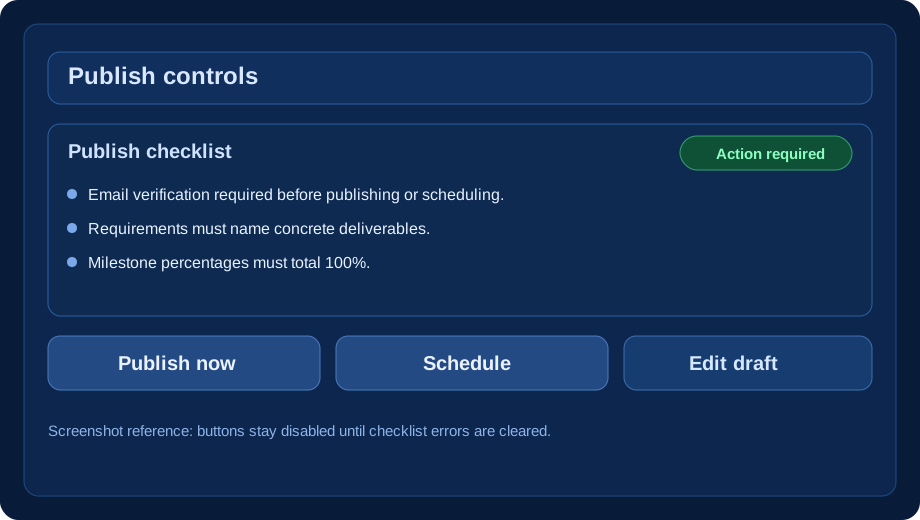
Mission pages now show an inline checklist before Publish/Schedule.
- Publish and Schedule buttons stay disabled until all required checks pass.
- The checklist shows exact blockers (for example: short requirements, incomplete milestones, or vague criteria).
- Email verification is required before publishing or scheduling.
- Scheduled missions only auto-publish when those same checks still pass at run time.
- Use Verify email if publish is blocked by verification.
Version history and restore
Draft changes are safer with autosave and version restore.
- Mission edits autosave and create version entries.
- Use compare mode to inspect differences before restoring.
- Restore any prior snapshot, then continue editing.
- This is useful when testing different scopes or payout splits.
Digest + preference updates
Notification preferences were redesigned for faster setup.
- Notification types are easier to scan in a compact multi-column layout.
- Choose daily or weekly digest email delivery.
- Set digest hour and timezone from a dropdown of American timezones.
- Use “Send test digest” to verify your configuration immediately.
- You can also adjust preferences from Preferences page.
Applying and reviewing
Keep submissions clean and review-ready.
- Apply as an individual or a team, based on mission fit.
- Read acceptance criteria and rubric before submitting.
- Track status as submitted, shortlisted, awarded, or rejected.
- Use mission updates and mentions to keep panel and collaborators aligned.
Funding, KYC, and payouts
Payout flows are gated by verification and milestone acceptance.
- Fund missions from your wallet and track escrow in the mission ledger.
- KYC and payout setup are required before withdrawals.
- Accepted milestones generate payout records automatically.
- Disputes or verification issues can block payout processing.
- VeriLabz may collect/remit sales tax/VAT where marketplace-facilitator rules apply.
- You are still responsible for your own income-tax filings and business tax compliance.
- Tax form details: 1099-K guide and W-9 collection guide.
Common questions
How do taxes work on VeriLabz?
We currently follow a marketplace-facilitator style model. For qualifying transactions, VeriLabz may calculate, collect, and remit sales/use tax or VAT. You still remain responsible for your own tax reporting (including income tax and deductible expenses). See Taxes on VeriLabz and the Terms of Service.
Will I get a tax form like 1099-K?
If required by law, VeriLabz may file tax information reports (for example IRS Form 1099-K for eligible U.S. accounts). Thresholds can change, so always review your year-end tax documents and consult your tax advisor. See the 1099-K guide.
How do I receive my 1099-K through Stripe Express?
If your account is eligible, we use Stripe Express for 1099 delivery. Keep your legal name, address, and tax ID current in Stripe Express, and consent to electronic delivery when prompted. During filing season, Stripe sends an email when your form is ready. If e-delivery consent is missing (or your account is ineligible for e-delivery), a mailed copy may be used based on filing settings and legal requirements. See W-9 collection for tax profile requirements.
Why can’t I publish my mission?
Open the mission page and review the Publish checklist. It lists exact blockers such as incomplete milestones, non-measurable acceptance criteria, short requirements/about fields, or missing email verification. Start from your draft missions.
Do the same checks apply to scheduled publishing?
Yes. The same readiness checks are used when scheduling and when auto-publish runs later, so incomplete missions do not go live by accident.
Can I fix guidance issues automatically?
Yes. In mission create/edit you can use one-click actions in Mission writing guidance to patch common problems (deliverables, measurable criteria, tags, and vague wording). Open Create mission or edit a draft from Missions.
Can I type a custom digest timezone?
No. Digest timezone is selected from a controlled list of American timezones to keep delivery behavior consistent.
Where do I change notification digest settings?
Open Notifications, click Preferences, then configure digest frequency, send hour, and timezone. You can send a test digest immediately.
How do I recover if I changed a mission draft incorrectly?
Open the mission edit page, check Version history, compare snapshots, then restore the version you want. Start from Draft missions.
Report a bug
Share page URL, exact steps, and screenshots so we can reproduce quickly.
Suggest an improvement
Tell us what would improve mission quality, publishing confidence, or notification workflows.
Support channels
- Support: support@verilabz.com
- Operations: ops@verilabz.com
- Include timestamps and relevant mission/payout IDs for faster help.